How to Merge PDF Files on Mac

2 سال پیش
- خواندن 7 دقیقه
PDF files merging on Mac could seem simple at first glance without delving too deeply into the topic, but it should be kept in mind that without knowing the technicalities of anything, it can be done simultaneously.
Let’s go ahead and learn the steps:
It is possible that merging all or a portion of two or more PDF files into a single PDF on Mac is a straightforward process when working with an Apple system, which is one of the most powerful systems in the realm of the default preview application.
Please note that any modifications you make will be saved automatically.
Just select File> Duplicate to create a duplicate of your PDFs before merging PDF files on Mac if you want the integrity of the original PDFs to be preserved.
- Launch Preview and open the first PDF document you wish to merge.
- Go to the View tab, then find the option for Thumbnails toward the top of the menu.
- Mac users can pick Thumbnails by going to View and clicking the corresponding button.
- This will cause the page thumbnails to be shown in the sidebar.
- To see the entire page, click on the thumbnail of the page.
- Click Edit, then Insert, and choose Page from File from the drop-down menu.
- Choose “Page from File” under “Edit” in the Mac menu bar.
- Select the PDF file you wish to include, and click the Open button.
- After this is done, the second PDF will be appended to the existing one. To rearrange the pages, drag the thumbnails around.
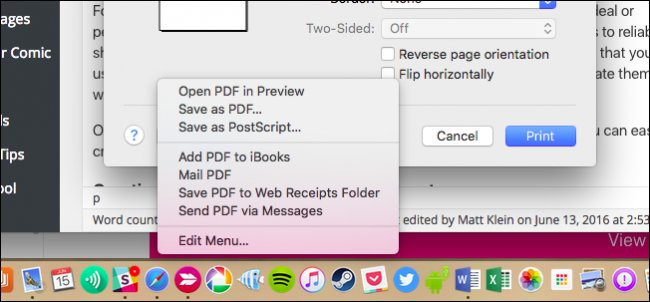
- To save your combined File, go to the File menu and choose Export as PDF from the menu bar.
What steps should you take if you have many PDF files stored on your Mac and want to merge PDF files on Mac into a single document but don’t want to use any of the options described in the previous paragraphs?
Don’t worry about it, however, since we’re going to show you another way to solve the problem:
- Utilize the Finder in your browser.
The only thing that must be watched out for is ensuring that all PDF files are contained inside the same folder.
Now that we have established that, let’s go through the steps:
The second way (+8 Steps)
1. Choose the files that you want to combine by clicking on them.
2. Click the chosen files using either your mouse’s right mouse button or your keyboard’s Command button.
3. Select Create PDF from the Quick Actions menu when you’ve navigated there.
4. The Finder will generate a brand-new PDF file and save it in the same folder it was found in.
5. It is possible to rearrange the pages by using the Page Thumbnails feature.
6. Using Finder on a Macintosh is the most effective method for merging PDF files.
7. Please note that you may only merge PDFs or pictures into a single file. It is not compatible with the.doc or.xls file extensions.
)

مشاهده نظرات بیشتر...