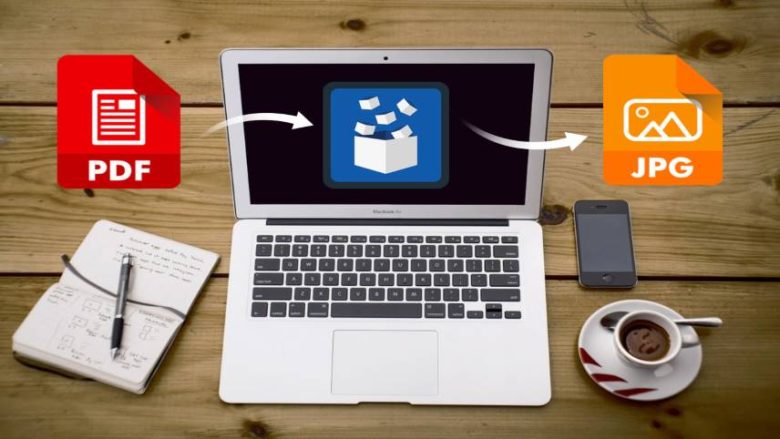
How to convert Pdf to JPG on pc and laptop

2 سال پیش
- خواندن 2 دقیقه
Dr. John Warnock, Adobe’s co-founder, launched the paper-to-digital transition in 1991.
His goal was to make people able to capture documents from any application and exchange electronic versions of documents.
In 1992, this idea was developed into PDF, a versatile file format that is easy to use.
The PDF files can be seen on Windows or macOS via the Adobe Acrobat Reader software.
The PDF format is proper when users do not need to modify the File and want to share and print without any change.
You can use Adobe Reader or a web browser to open a PDF file. As a result, you will not face any restrictions when using it.
Microsoft Word is an essential program for Windows that is easy to use.
You can utilize it for different purposes. Do you know how to use MS Word to convert PDF to JPG?
Follow these steps to convert PDF to JPG via MS Word.
- Step 1: You must right-click on the PDF file, choose “open with,” and click on “Word.”
- Step 2: After Word opens the File, click on File in the left-upper corner, choose Save as, and select output format as JPG.
You may also select the location to save it after changing the file name.
One of the leading tools for converting PDF to JPG on Windows is PDFelement Pro. With the help of this program, you can convert PDF to JPG on a PC or laptop under Windows 10.
This PDF converter combines an advanced OCR feature, which makes it easy to convert scanned PDFs.
Step 1: Import PDF File
- You must download and install PDFelement for Windows on your computer or laptop. Then launch the program.
- You will see ‘Open File,’ which lets you browse your folder to find the desired File.
- After finding the File, click on it to import it into the software
- You can edit your PDF before converting between the first and second steps. To do this, navigate to the ‘Edit’ tab to add a signature, image or text.
Step 2: Convert PDF to JPG
- Start converting PDF to JPG on your PC or laptop. Head to ‘Convert’ and select the ‘To Image’ option.
- A message will now appear on your screen asking you to specify the output format of the image.
- Choose ‘JPG,’ and you can select ‘Each page of the PDF as separate images,’ ‘Adjoin all pages into one single image,’ or ‘Extract all images in the PDF’ by clicking ‘Setting.’
- After finishing all the settings, click ‘Save.’ Then the conversion process will begin automatically.
- As a result, the converted File as a JPG will be available for you.
)

مشاهده نظرات بیشتر...