Quick tricks to delete one or multiple pages from a PDF file

2 سال پیش
- خواندن 4 دقیقه
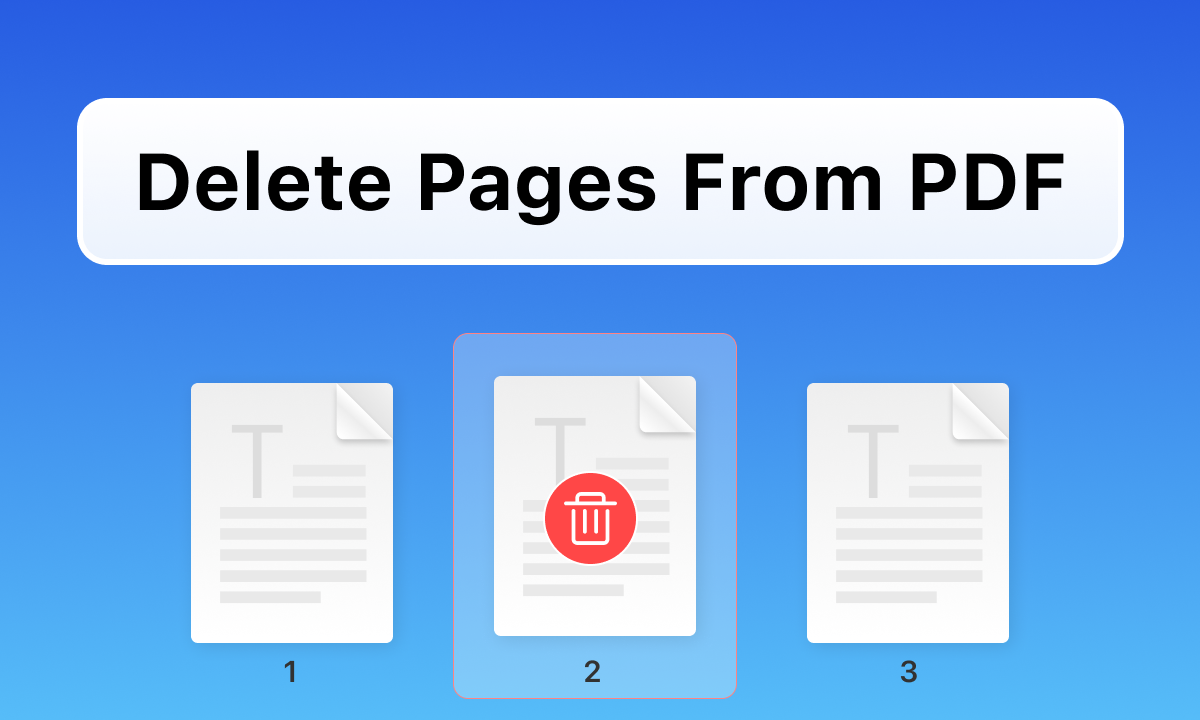
To delete PDF pages before using online tools, you can use a browser like Google Chrome. To do this, follow the steps below:
Open the Chrome browser on the computer. Go to the Downloads page from the settings section or press the shortcut keys Ctrl+J.
Select the desired PDF file from File Explorer and drag and drop it onto the Downloads tab in Chrome.
The PDF file will open. Click on the print icon and select the desired pages.
Click on save and choose the location to save the new file. If you don't need the original PDF file, you can replace it with the new one. If you want to keep the original file intact, be sure to choose a new name for it.
Check the new file once more to make sure no page is missed.
Delete PDF pages in Microsoft Word
If you are using Microsoft Word 2013 or later versions, you can use it to delete PDF pages. To do this, follow the steps below:
Related articles:
How to remove the password of PDF files?
Open Microsoft Word and from the Files tab, click Open and then Browse. Go to the location where the PDF file is saved. Be careful that to see PDF files, you must have selected All Files in the file format section.
After selecting the file, a pop-up window will appear informing you that this will change the file format from PDF to Word. Click OK to confirm.
Now that all the pages have been converted to Word, you can easily delete the pages you don't want. Select all the desired pages and then press the Delete button on the keyboard.
After the removal of pages is finished, click Open and then Save As from the Files tab. To save the desired file as a PDF, select the PDF format and click Save. This will save the edited file as a PDF.
Delete PDF pages online
There are many online tools for editing PDF files. Sejda website and pdf2go are good PDF editing tools that you can use.
Remove PDF pages on sejda website
One of the best PDF editing websites is the sejda website, which provides more than 30 different tools for this purpose. Follow the steps below to delete PDF pages using sejda:
First, upload the desired PDF file to the sejda website.
Select the pages you want to delete and click Delete.
Save the changes and then download the edited PDF file.
Delete PDF pages on the pdf2go website
First, upload the desired PDF file to the pdf2go website.
Delete or move the desired pages. Use the trash can icon to clear pages.
After editing, save the changes and download the new file.
Delete PDF pages on macOS
If you have a MacBook and want to edit a PDF file, you can use the Preview program. To do this, do the following steps:
Open the desired PDF file in Preview.
Click Edit from the toolbar.
Select the pages you want to delete and then click Delete.
Delete PDF pages on iPhone
One of the best PDF editing apps for iPhone and iPad is PDFelement. To use this app, follow the steps below after downloading PDFelement from the App Store.
Import the PDF file from your cloud storage into the app. You can also use wifi transfer to import PDF to local list.
Open the file and enter Page mode by tapping on the icon on the right side of the page.
Tap the Edit icon and select the pages you want to delete, then tap the Delete button.
Delete PDF pages on Android
The process of removing pages from PDF on Android is similar to iPhone. You need a PDF editor for this. After downloading PDFelement from Google Play, follow the steps below:
Run the PDFelement program and then open the desired PDF file.
Click on the three-dot icon on the right side of the page and select Page in the pop-up window that appears.
Select the pages you want to delete and then touch the Delete button on the right side of the page. Click Yes to confirm.
PDF is a great way to present and exchange documents between two hardware, software or operating systems. PDF files are primarily made for viewing; Therefore, to preserve the information, the ability to edit is usually taken away from them. By using the methods mentioned above, you can make necessary changes in PDF files.
)

مشاهده نظرات بیشتر...